HOW TO RECEIVE MASSAGE ORDER ON THE GLOW APP
CONTENT
1. Update your work schedule
2. Detailed instructions for receiving orders
If you haven't registered as a Glow Therapist yet, please register following the instructions here:
👉 Glow Therapist Registration Guide
1. UPDATE YOUR WORK SCHEDULE
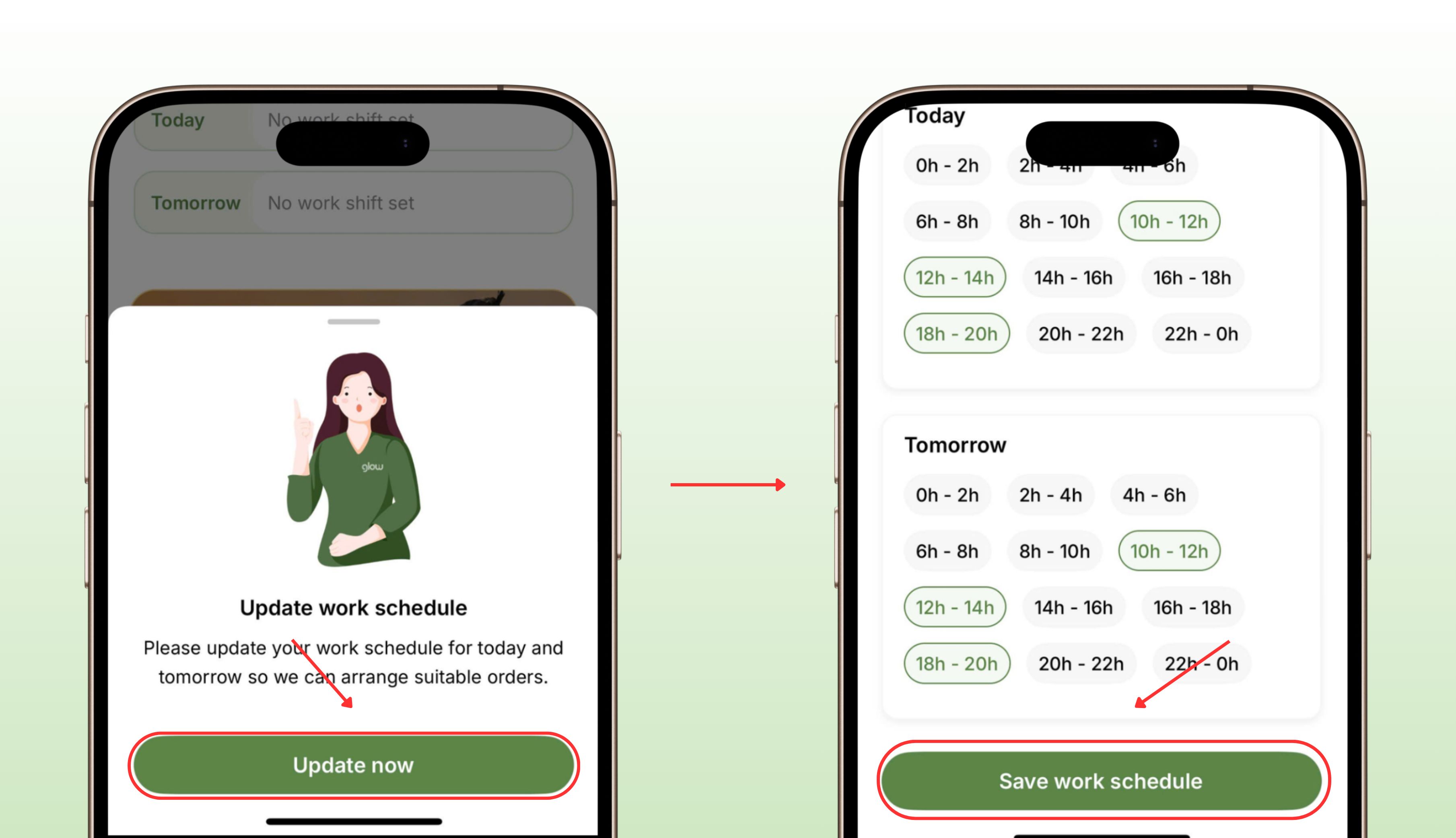
Step 1: Go to the Glow App → Tap “Update Now”
Step 2: Select the time and tap “Save Work Schedule”
* Note:
- You need to update your work schedule for your profile to be displayed on the app.
- You can edit your work schedule after updating it.
2. DETAILED INSTRUCTIONS FOR RECEIVING ORDERS
*Note: You need to grant location access to the Glow app to be assigned orders that match your location.
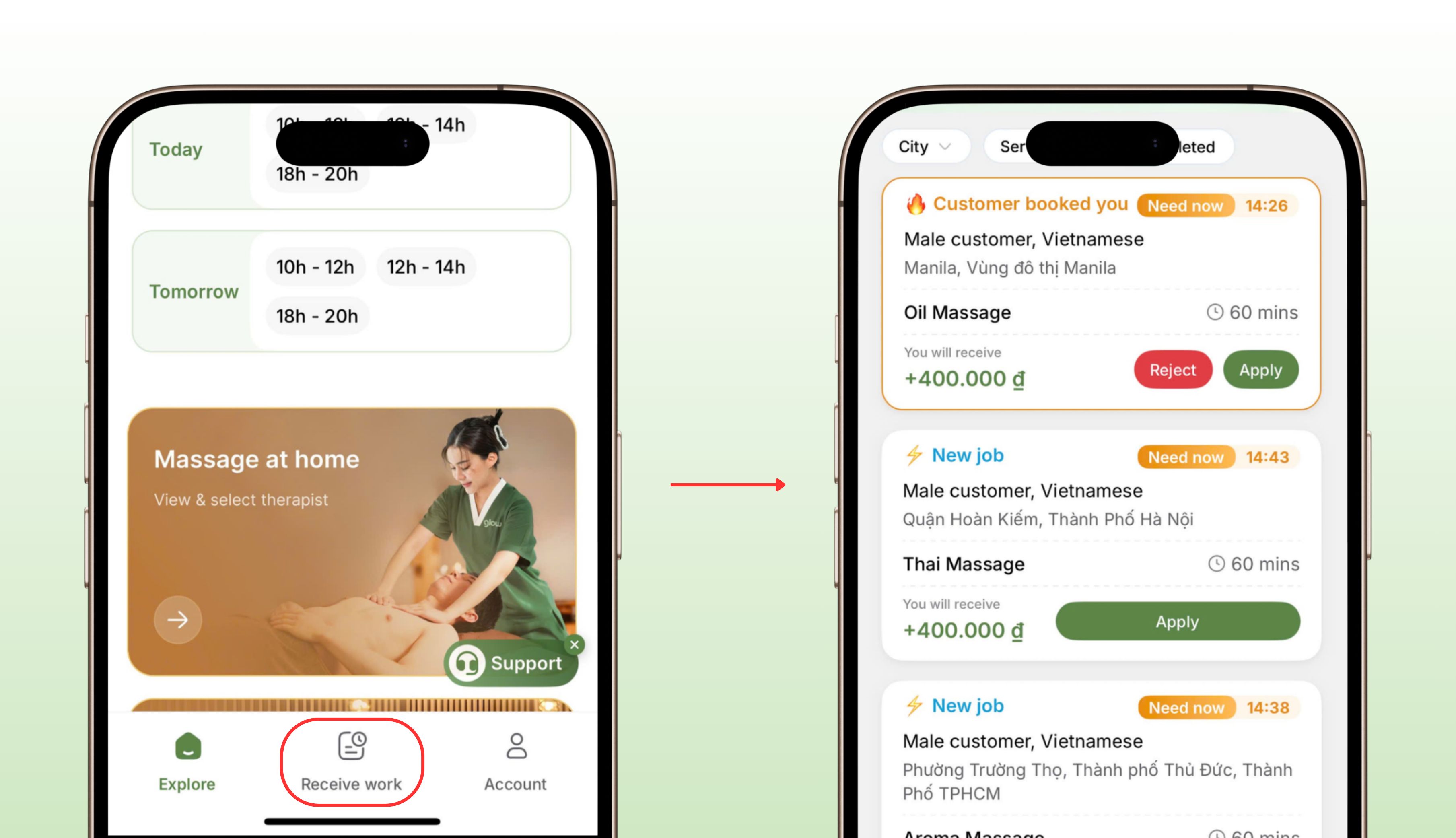
Step 1: Go to “Receive Work” → View Order List
Orders are displayed with the following statuses:
-
Customer booked you: If you can do it, click “Apply” on the order. You don't need to wait for the customer to select if applying for an order “Customer requested you”.
-
New job: Customer has not yet selected a therapist. You need to wait for the customer to select if applying for an order.
-
Expired: Customer has already selected a therapist.
Click on the order and carefully read the information including:
a. Service and service time
b. Address
c. Payment method, amount you will receive
d. Gender and nationality of the customer
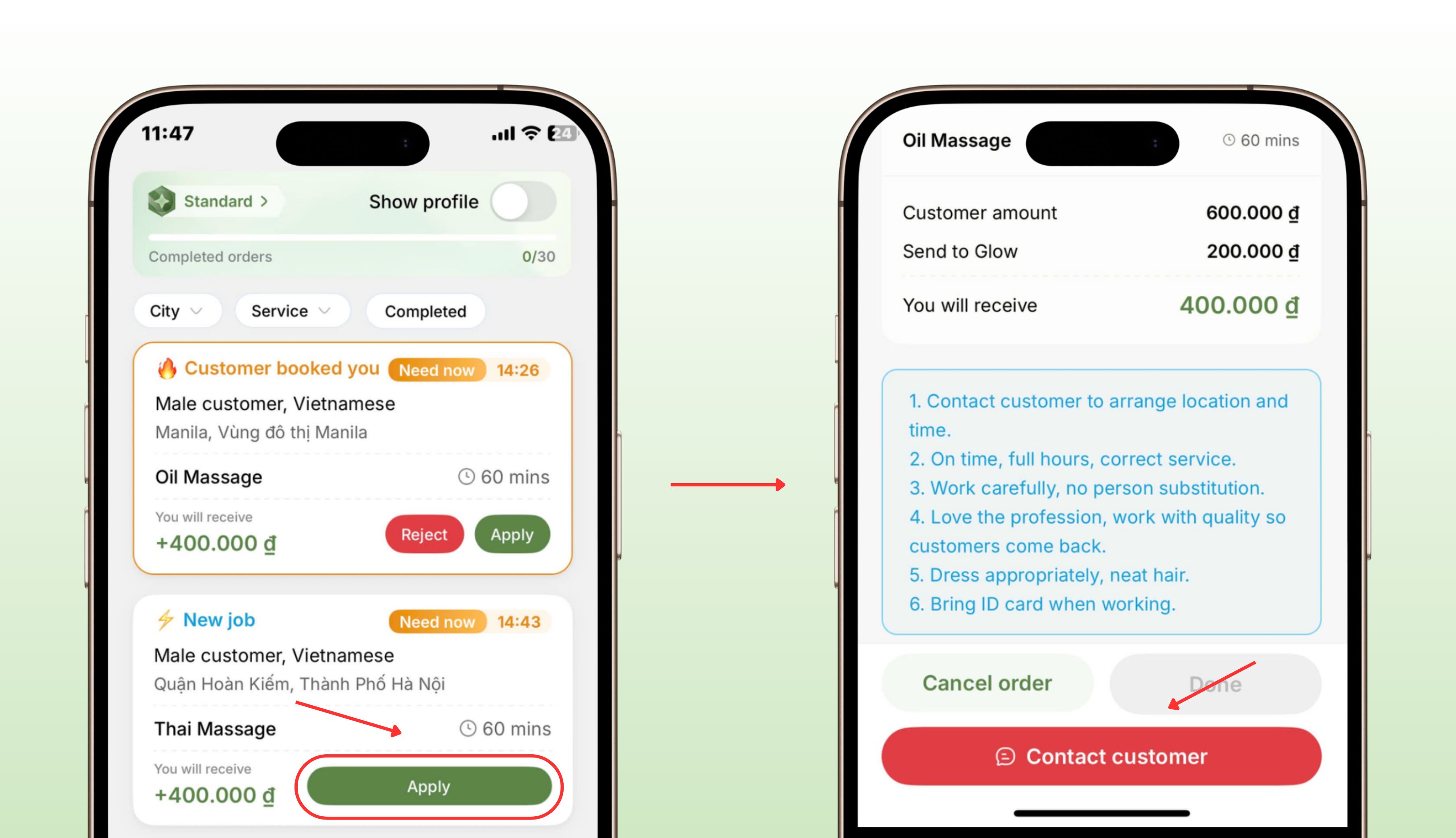
Step 2: Click “Apply” on the orders you can do and wait for the customer to select.
"Apply" means agreeing to accept the order, so you are responsible for your actions when you click "Apply".
You can apply for multiple orders at the same time (provide you are able to complete them).
If an unexpected issue arises, click "Cancel Apply".
Note: "Cancel Apply" and "Cancel Order" are different.
-
Cancel Apply: cancels your acceptance of the order before being selected by the customer.
-
Cancel Order: cancels the order after being selected by the customer.
Step 3: Contact the customer when you are selected.
Glow will notify you on the app, and the call center will call you to inform you that you have been selected.
Click on the order, then confirm the amount to be collected from the customer.
Click "Contact Customer" to send a message (or click the Call button if the customer doesn't reply to messages on the app) to confirm the address and travel time.
If the customer is foreign, use Google Translate.
After completing the order, click "Done" on the Glow app.